You have hundreds of replays sitting in a folder you never open. Repalyzer turns that folder into something you can learn from: a searchable library, a record of how you do in every matchup, and a minute-by-minute breakdown of any single game. This guide explains what it does, what it needs, and where to start.
Why I built Repalyzer
I've used BWChart since it first came out. It's a great tool, but it was never fully true to the game. It shows the commands a player sent, not what those commands actually did on the map. A queued unit that never got built, a building cancelled a second later, an attack that never connected: in BWChart, they all look the same as the real thing.
For years I got by with a small tool of my own that kept my StarCraft replay library organised. Then, while talking with Champian, the creator of sagi.gg, about a different project, it clicked: what if I used OpenBW to replay every game in full and see what really happened, not just what was clicked?
Repalyzer grew out of that idea. I combined it with more than 20 years of coaching experience and with everything players have asked me for over the years: the questions they keep asking, the patterns they can't see on their own, the tools they wished existed. The result is the tool this guide walks you through.
Same game, two tools
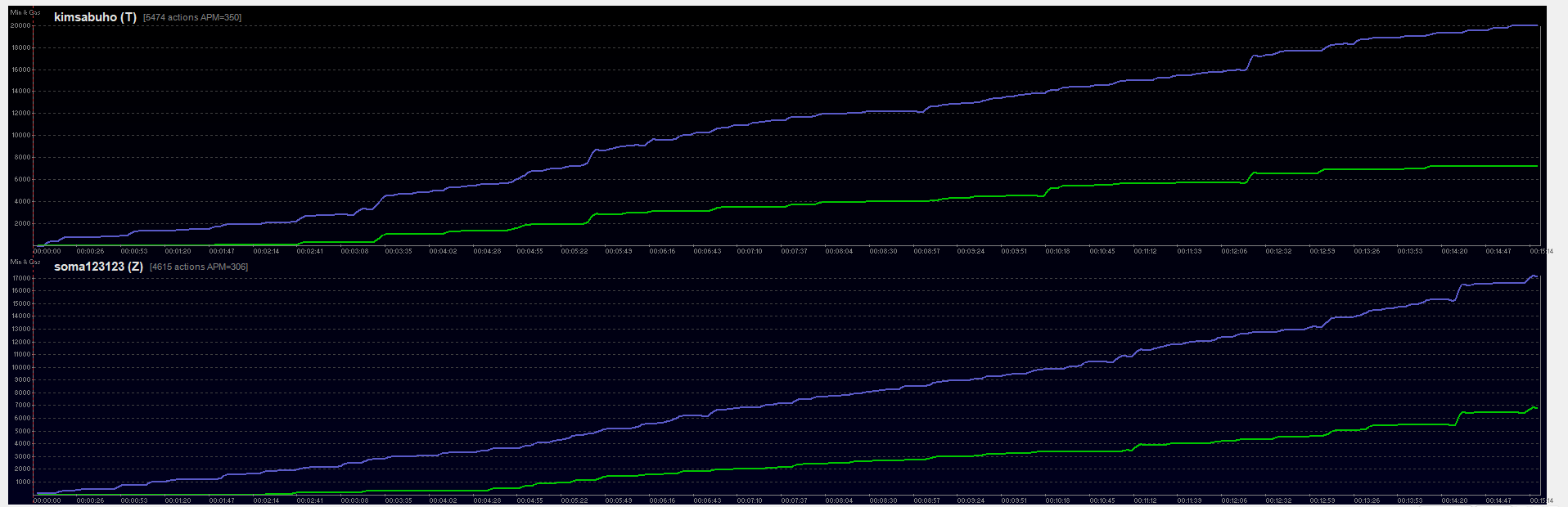
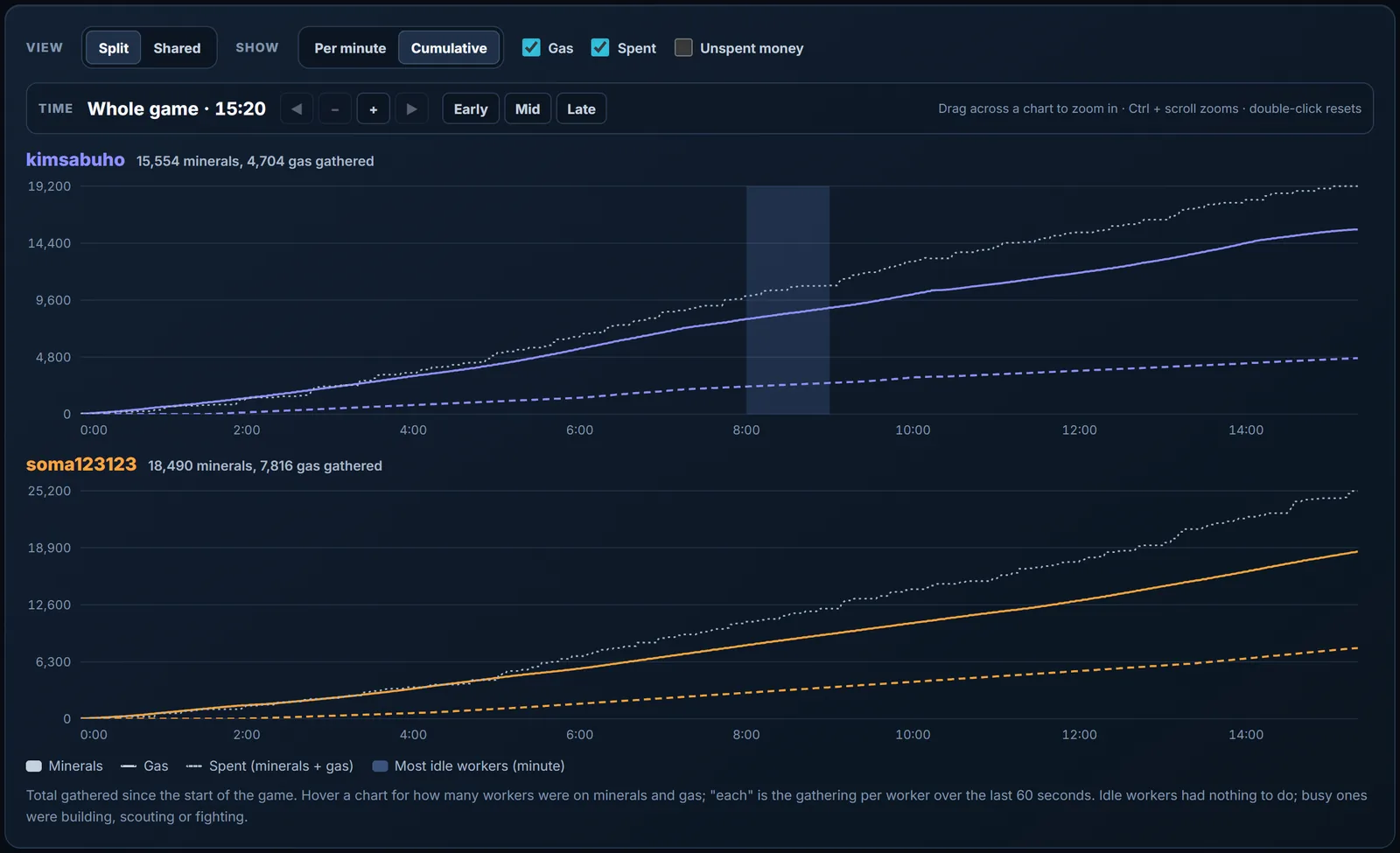
Here is Light vs Soma, played on 11 September 2026, opened in BWChart 2.00C and in Repalyzer. The clearest difference is money. BWChart adds up the cost of the commands a player sends; Repalyzer replays the game in the engine and counts what was really spent.
| Light vs Soma | BWChart: cost of commands | Repalyzer: actually spent | Repalyzer: gathered |
|---|---|---|---|
| Light, minerals | 20,025 | 14,889 | 15,554 |
| Light, gas | 7,250 | 4,310 | 4,704 |
| Soma, minerals | 17,275 | 17,725 | 18,490 |
| Soma, gas | 6,875 | 7,450 | 7,816 |
That makes BWChart's money figures unreliable: depending on the game, they come out too high or too low, and you can't tell which from BWChart alone. In this one game you get both.
- Too high for Light. By BWChart's count, Light spent 20,025 minerals in a game where only 15,554 were mined. The 5,136 above what Light really spent are orders that never turned into anything, such as units cancelled from the queue, buildings that were never placed, or commands sent without the money to pay for them.
- Too low for Soma. BWChart counts 450 minerals and 575 gas less than Soma actually spent. One command can morph several larvae at once, and BWChart counts it as a single unit.

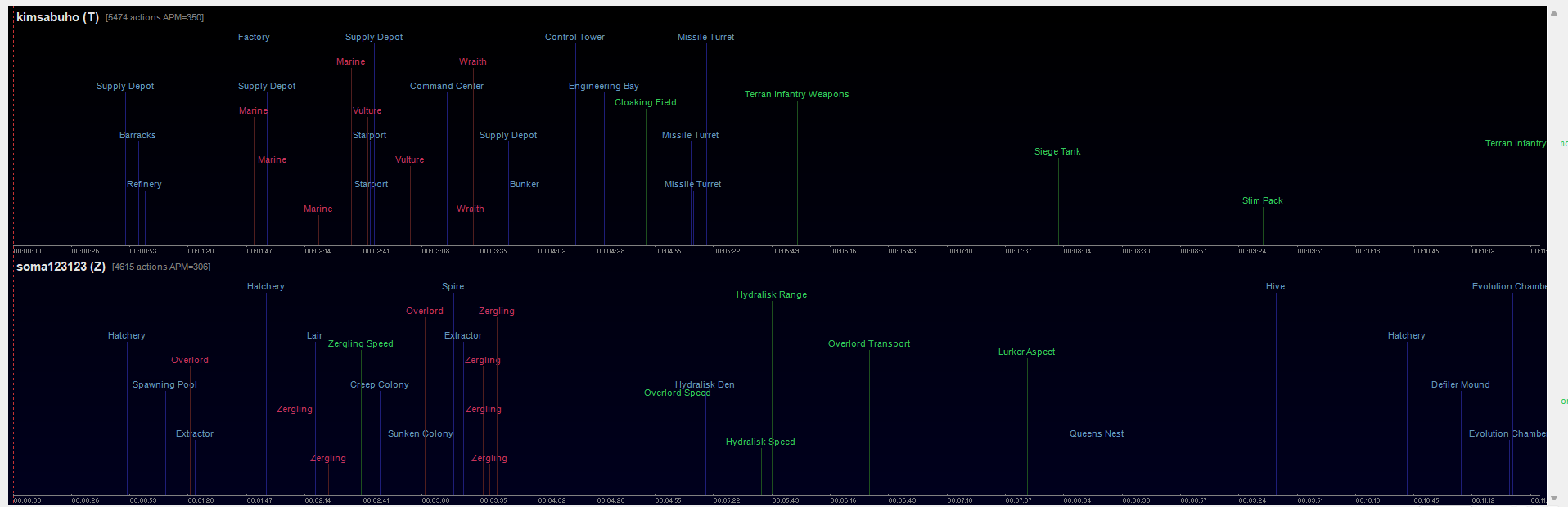
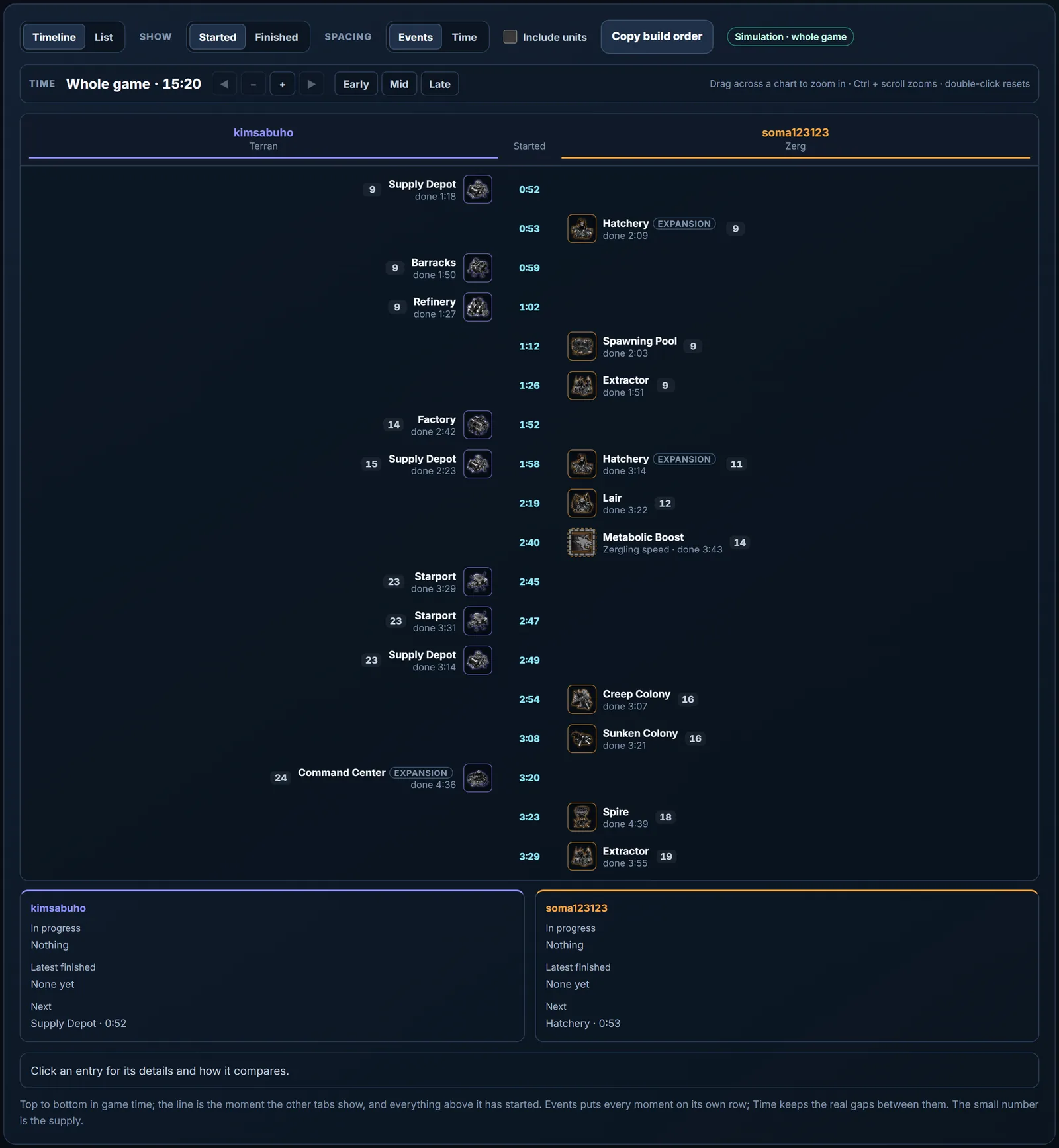
Build orders show the same split. BWChart places each building where the command was sent. Repalyzer shows when it started and finished on the map, and leaves out buildings that were never placed.
BWChart is still a fine way to see what a player clicked. Repalyzer adds what those clicks actually did.
What Repalyzer is
Repalyzer is a free Windows app for StarCraft: Remastered and Brood War replays. It reads the .rep files already on your PC. Nothing is uploaded, and your original files are never changed, moved or deleted unless you ask.
What makes it different from a plain replay parser is the simulation. Repalyzer replays each game in a copy of the Brood War engine, so economy, supply and timings come from what really happened on the map. A building that was ordered but never placed is not counted as if it had been. That is why it can tell you how long your workers stood idle, or exactly when you were supply blocked, rather than just how fast you clicked.
What you need
- Windows 10 or 11, 64-bit.
- StarCraft: Remastered replays (.rep). Older 1.16 replays work too.
- StarCraft installed from Battle.net for the simulation tabs: income, workers and supply, Adept and the hidden-unit scan. The free version is enough, and the game does not need to be running.
Without StarCraft installed you still get the library, the Player dashboard, Patterns, APM, hotkeys, actions and build orders. Those all come from the replay file alone.
First launch
When Repalyzer opens for the first time, it asks two things:
- Which Known Players lists to start with. Pick Korean progamers, Foreigner players, both, or none. These lists link every nickname a player has used, so a pro's smurf accounts count as one person. You can change this later.
- Whether to import your replay folder. One click imports the game's own replay folder. You can skip this and drag in folders or single .rep files later.
Installing is quick: download, run and click through the installer. The two warnings Windows shows on the way, and what to click, are in the install section of the Repalyzer page.
The three views
Everything in Repalyzer sits in one of three views. Think of them as zoom levels.
Local Explorer: your whole library. This is where your replays live. Search and filter by player, race, opponent, map, game length, date or integrity status, then save the view for next time. Index mode leaves files where they are; Copy mode makes managed copies. Background analysis works through your newest 300 games, a single folder or the whole library, and pauses while StarCraft is open.
Player dashboard: your trends. Pick any player in the library, including yourself. You get win rate by matchup, map and month, your strongest and toughest matchup and map, and a Scouting card for any opponent. Patterns compares your wins with your losses.
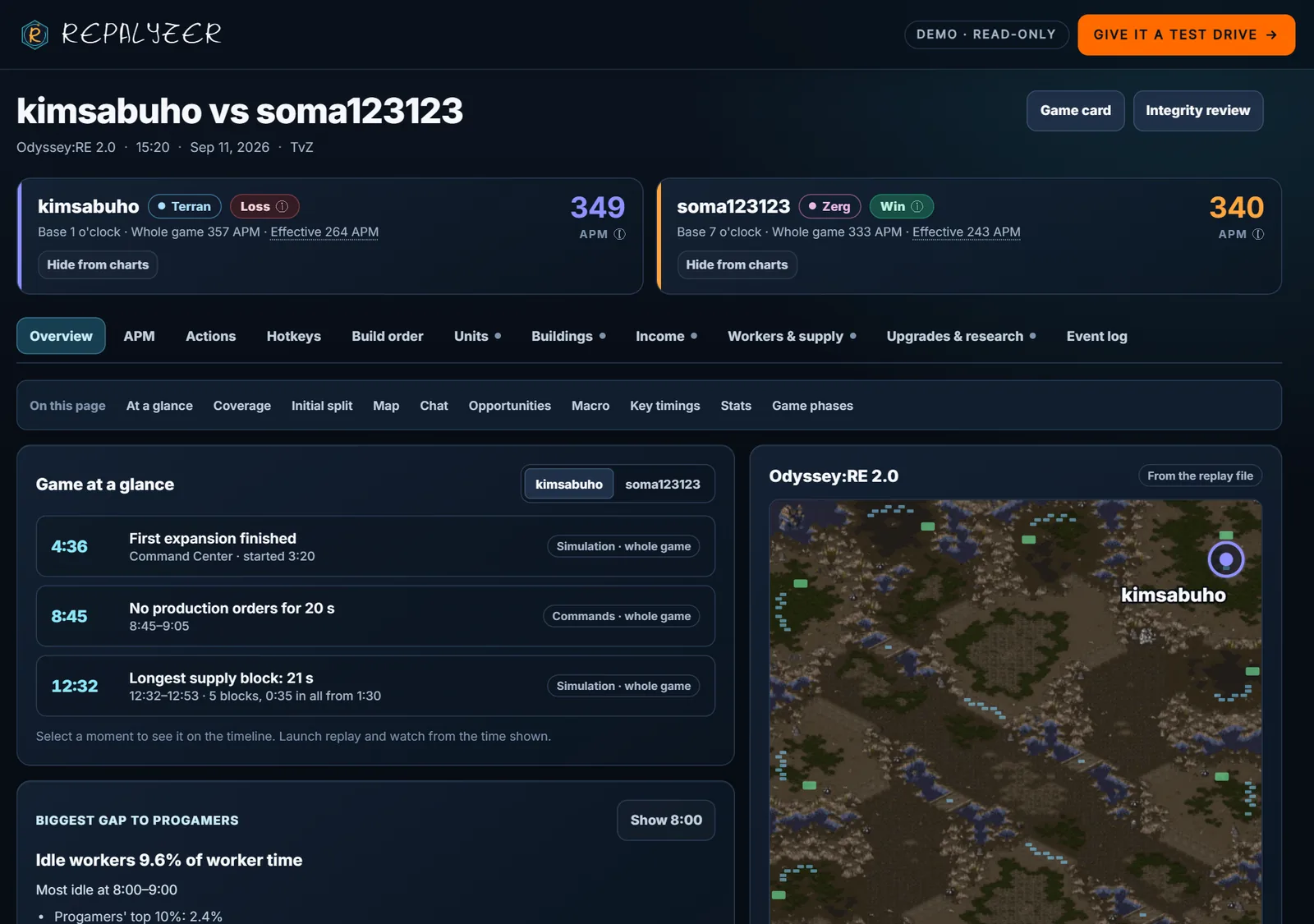
Repalyze: one game in depth. Open any replay to see Game at a glance (the moments that decided the game and the chances you missed), APM and hotkeys, the build order side by side, and income, workers and supply over time. Once Repalyzer is your default replay app, double-clicking a .rep file opens it here.
Turn on Automatic mode
If you only change one setting, make it this one. Automatic mode analyzes each game within seconds of it ending and shows a small card with the result, APM, supply blocked, idle workers and One thing to fix. You get feedback while the game is still fresh, without opening anything.
To turn it on, open Local Explorer, choose Analyze replays, and at the bottom of the page, under Automatic, tick Analyze new replays from the AutoSave folder automatically. While the app is open, each game you finish is analyzed as soon as StarCraft saves it, and its report appears at the top of the app.
Try it before you install
The live demo on the Repalyzer page runs the real interface in your browser with progamer replays: Light vs Soma (TvZ), Speed vs Snow (TvP), Mini vs Soulkey (PvZ), and a game against a bot that shows what the integrity review finds. Five minutes in the demo is the quickest way to see whether Repalyzer is for you.
Where to go next
- Your first replay review in 10 minutes walks through one game, tab by tab.
- Build your own player dashboard from your replays turns your whole collection into win rates by matchup, map and month.
- How do you stack up against the pros? compares your games with progamer averages.
Questions or bugs: open Help & diagnostics in the app, click Copy diagnostics, and paste it on the Discord with a short description.